

Installation
Requirements
- Flutter ≥ 3.22, Dart ≥ 3.4 (null-safety,
Future/Stream-based API) - iOS ≥ 15.5, Android minSdk 24
See Compatibility for the full support matrix.
Install the package
flutter pub add bgeo_background_geolocationThere is no manual native linking step — the Flutter plugin system wires up the Android/iOS platform code on both platforms. What’s left is native project configuration: the deployment target and Info.plist keys on iOS, a Maven repo and manifest permissions on Android.
Import convention
Import the package with an as bg prefix:
import 'package:bgeo_background_geolocation/bgeo_background_geolocation.dart' as bg;This is the recommended default because the SDK’s own State class
collides with Flutter’s State<T> widget-state class otherwise. Reference
everything through the prefix — bg.BackgroundGeolocation, bg.Config,
bg.State, etc.
If your code never needs to name the SDK’s State snapshot type directly
(for example, if you only read state.enabled off the return value of
ready()/start()/stop() without ever declaring a bg.State variable),
a lighter-weight alternative is to hide it instead:
import 'package:bgeo_background_geolocation/bgeo_background_geolocation.dart' hide State;as bg is the safer default since it scales to any usage; hide State is
fine for small apps that only touch the plugin from a handful of call sites.
iOS setup
Deployment target
BGeo’s vendored BGeoCore.xcframework has a floor of iOS 15.5. Set it in
both places Flutter apps track a deployment target:
platform :ios, '15.5'And the Runner target’s iOS Deployment Target build setting in Xcode (target → Build Settings → iOS Deployment Target). Then install pods:
cd ios && pod installInfo.plist keys
Add these keys to ios/Runner/Info.plist:
<key>NSLocationAlwaysAndWhenInUseUsageDescription</key><string>Explain why your app tracks location in the background.</string><key>NSLocationWhenInUseUsageDescription</key><string>Explain why your app needs your current location.</string><key>NSMotionUsageDescription</key><string>Motion activity is used to detect movement and pause tracking when stationary.</string><key>UIBackgroundModes</key><array> <string>location</string></array>| Key | Why it’s required |
|---|---|
NSLocationAlwaysAndWhenInUseUsageDescription | Shown when requesting Always authorization, needed for background tracking. |
NSLocationWhenInUseUsageDescription | Shown for the foreground/“When In Use” step of the authorization prompt. |
NSMotionUsageDescription | Shown when the engine reads Core Motion activity (moving/still) to drive the motion state machine. |
UIBackgroundModes → location | Tells iOS your app performs background location updates; without it, background delivery is silently capped. |
Write real justification strings — App Store review rejects vague usage descriptions. See Permissions & background location for the full authorization/review guidance.
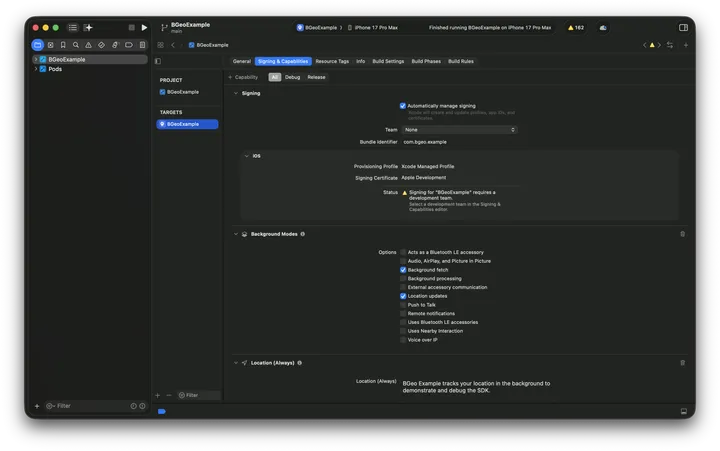
Enable the Background Modes capability in Xcode
The Info.plist entry above must be paired with the capability enabled in
the Xcode project:
- Open
ios/Runner.xcworkspacein Xcode. - Select the Runner target → Signing & Capabilities.
- Click + Capability, choose Background Modes.
- Check Location updates.
Android setup
Add the local Maven repo
The closed engine ships as an AAR in a local Maven repo inside the plugin
package. Gradle repository declarations are per-project, not inherited from
a dependency project, so your app’s own android/app/build.gradle.kts
(or .gradle) must add that repo itself:
repositories { maven { url = uri("${project(":bgeo_background_geolocation").projectDir}/libs") }}repositories { maven { url "${project(':bgeo_background_geolocation').projectDir}/libs" }}Using the Flutter-generated project(':bgeo_background_geolocation') handle
(rather than a relative path into node_modules-style vendoring) resolves
correctly whether the plugin is installed from pub.dev (under
~/.pub-cache) or referenced as a local path dependency.
Declare the background-location permission
Google Play policy requires the app, not a library, to own the
background-location declaration (and the corresponding Play Console
disclosure), so ACCESS_BACKGROUND_LOCATION is deliberately not
auto-declared by the plugin. Add it to your app manifest:
<uses-permission android:name="android.permission.ACCESS_BACKGROUND_LOCATION" />Permissions merged automatically
The engine AAR’s manifest merges the rest of the permissions the plugin needs directly into your app:
| Permission | Why |
|---|---|
ACCESS_FINE_LOCATION | Foreground GPS fixes. |
ACCESS_COARSE_LOCATION | Network/cell-grade location fallback. |
ACTIVITY_RECOGNITION | Drives the moving/still motion state machine via Play Services. |
FOREGROUND_SERVICE | Required to run the tracking foreground service. |
FOREGROUND_SERVICE_LOCATION | Android 14+ typed foreground-service permission for the location service type. |
RECEIVE_BOOT_COMPLETED | Resumes tracking after reboot when startOnBoot is enabled. |
WAKE_LOCK | Keeps the device awake briefly for background processing. |
POST_NOTIFICATIONS | Android 13+ permission for the required tracking notification. |
INTERNET / ACCESS_NETWORK_STATE | Native HTTP upload of queued locations. |
See Permissions & background location for the runtime request flow and the Play Console disclosure requirement.
Gradle notes
- minSdk 24, compileSdk 36.
- The plugin’s Android namespace is
com.bgeo.flutter; the vendored engine AAR owns thecom.bgeonamespace separately, so there’s no resource/R-class clash.
Verify the install
Build and run the app on a device or simulator, then confirm the plugin loaded:
import 'package:bgeo_background_geolocation/bgeo_background_geolocation.dart' as bg;
final state = await bg.BackgroundGeolocation.getState();print(state.enabled); // false is expected before ready()/start()
If this resolves without throwing, the plugin linked correctly on that
platform. See getState()
for the full return shape, and Quickstart
for wiring up ready()/start() and your first location events.